


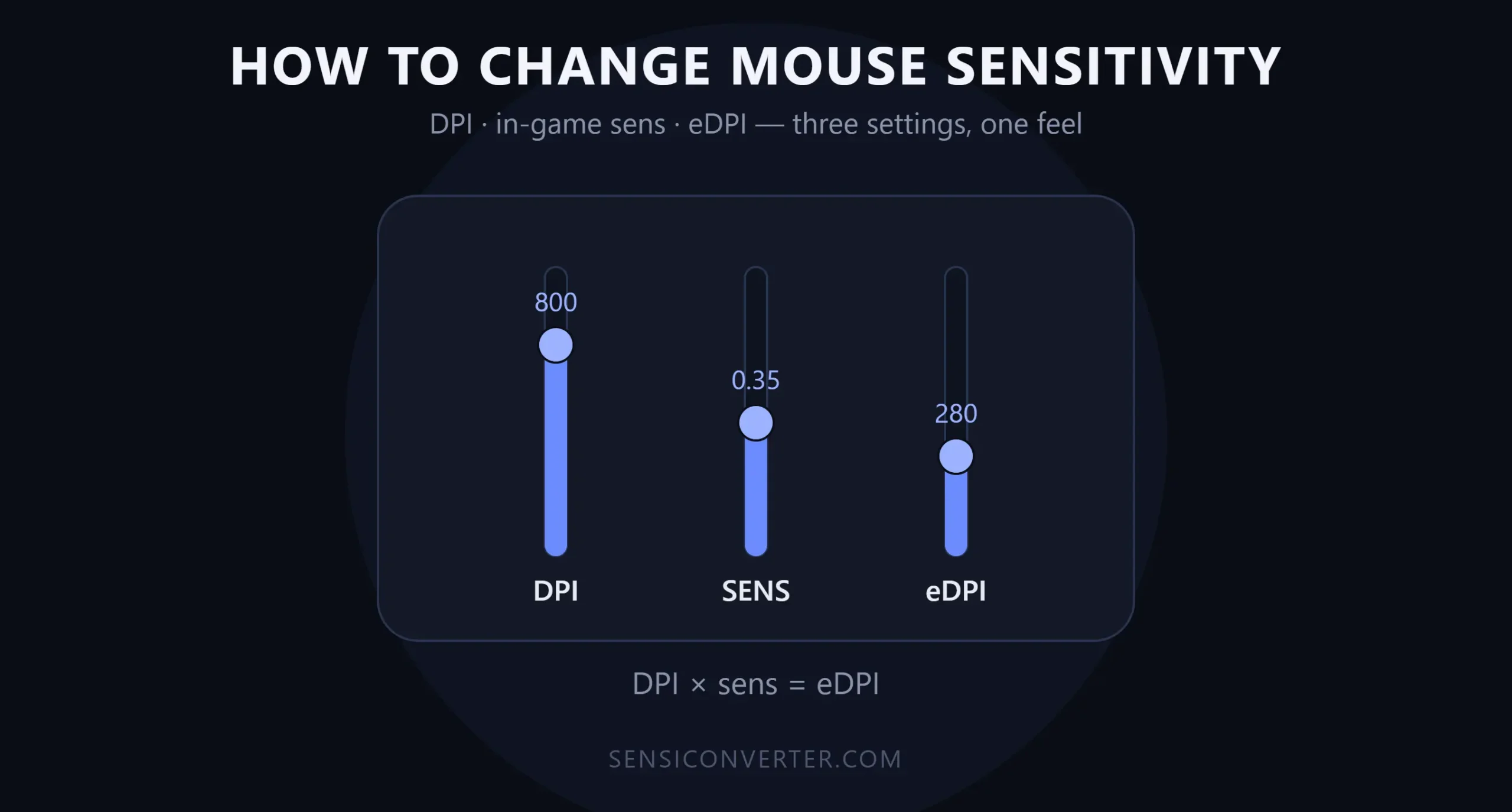
I spent way too long treating “sensitivity” like one single slider. Bump it up, feels too fast. Bump it down, feels sluggish. Repeat forever. It wasn’t until I actually understood that sensitivity is made of three separate pieces — not one — that my aim stopped feeling like a moving target every single week.
If you just want to change your mouse sensitivity and actually understand what you’re adjusting instead of blindly dragging a slider, here’s the full breakdown.
The Three Things People Call “Sensitivity”
Before you touch a single setting, it helps to know what you’re actually changing. These three numbers are related, but they’re not the same thing, and mixing them up is the #1 reason people can never lock in a sens that feels consistent.
| Term | What It Is | Where You Change It |
|---|---|---|
| DPI (dots per inch) | How many counts your mouse sensor reports per inch of physical movement | Mouse manufacturer software |
| In-game sensitivity | A multiplier the game applies on top of your DPI | The game’s settings menu |
| eDPI (effective DPI) | DPI × in-game sensitivity — your true overall speed | Calculated, not set directly |
How to Change Your DPI
DPI is set at the hardware level through your mouse’s software, not in Windows or your game.
- Install your mouse’s official software (Logitech G Hub, Razer Synapse, SteelSeries GG, Corsair iCUE, etc.).
- Open the DPI or sensor settings page.
- Set a clean, round number — 400 and 800 are the two most common choices among competitive players because they track more predictably on most sensors.
- Save the profile to your mouse’s onboard memory if it supports it, so the setting persists even on a different PC.
Don’t change DPI often. Every time you switch DPI, your in-game sensitivity has to change too just to maintain the same feel. Pick a DPI once and leave it alone — treat it like a fixed foundation, not a dial you fiddle with.
If you’re not sure your mouse is actually reporting the DPI you set, it’s worth double-checking — mice will sometimes drift or misreport once software profiles and OS-level pointer scaling get involved. Running a quick check on a DPI analyzer settles that in seconds.
How to Change Mouse Sensitivity in Windows
This is different from your in-game sensitivity — it only affects your desktop cursor, not your games (most competitive games use raw input and ignore this setting entirely, but it’s still worth knowing).
- Open Settings → Bluetooth & devices → Mouse (Windows 11) or Settings → Devices → Mouse (Windows 10).
- Adjust the Cursor speed slider.
- Under Additional mouse settings → Pointer Options, make sure “Enhance pointer precision” is unchecked — this applies mouse acceleration, which most gamers want off since it makes your sensitivity inconsistent at different movement speeds.
How to Change Mouse Sensitivity In-Game
Every game buries this slightly differently, but the general path is the same:
- Open Settings → Controls or Settings → Mouse/Keyboard.
- Find the Sensitivity or Mouse Sensitivity field.
- Enter a numeric value directly if the game allows it — this is far more precise than dragging a slider.
- Check for separate ADS (aim-down-sights) sensitivity and scoped sensitivity fields — these are independent from your base sens in most shooters and often get overlooked.
- Save and test in a private match or the game’s practice range before jumping into competitive play.
If You’re Switching From Another Game
Don’t just guess a number that “feels close.” Your muscle memory is built around a specific physical mouse distance, and eyeballing a new sensitivity throws that away. Instead, convert your exact sensitivity across 100+ supported games so the new game’s slider actually matches how far your hand is used to moving.
How to Verify Your New Sensitivity Is Actually Right
Changing the number is easy. Confirming it’s correct is the part most people skip. Here’s the quick routine I run every time:
| Step | Tool | What It Confirms |
|---|---|---|
| 1 | DPI analyzer | Your mouse is reporting the DPI you think it is |
| 2 | Mouse sensitivity converter | Your new in-game sens matches your intended feel |
| 3 | cm/360 calculator | The physical mouse distance for a full turn is consistent |
| 4 | eDPI calculator | Your overall speed lines up with pro or personal benchmarks |
Don’t Forget FOV
Field of view and sensitivity are linked. Raising your FOV without adjusting sens changes your effective turning speed even though the slider itself didn’t move. If you’re bouncing between games with different FOV defaults, convert your field of view correctly at the same time you dial in sensitivity, not after.
Recommended Starting Points
If you’re changing sensitivity because your current one feels wrong and you’re not sure what “normal” even looks like, this is a reasonable starting range for competitive FPS games:
| Setup | Recommended cm/360 | Notes |
|---|---|---|
| Precision-focused (sniping, tac-shooters) | 40–60 cm | Slower, more controlled |
| Balanced / all-round | 26–40 cm | Most common competitive range |
| Fast-flick / close-quarters | 15–26 cm | Faster turns, less fine control |
FAQ
Where do I change my mouse DPI? Through your mouse manufacturer’s software — DPI is a hardware setting, not something adjusted in Windows or in-game.
Does Windows mouse speed affect my games? Usually not. Most competitive games read raw mouse input directly and ignore the Windows pointer speed setting entirely.
Should I turn off mouse acceleration? Yes, for competitive play. Uncheck “Enhance pointer precision” in Windows and make sure acceleration is disabled in-game if the option exists — it makes your sensitivity inconsistent depending on how fast you move your hand.
How do I keep the same feel when I switch games? Match your cm/360 rather than copying the raw sensitivity number, since every game applies its own internal multiplier.
Conclusion
Changing your sensitivity isn’t really about the slider — it’s about knowing which of the three numbers (DPI, in-game sens, eDPI) you’re actually adjusting and why. Lock your DPI, change in-game sens deliberately, and always verify the result instead of guessing. Get it right once and you stop rebuilding your aim from scratch every time you tweak a setting.