


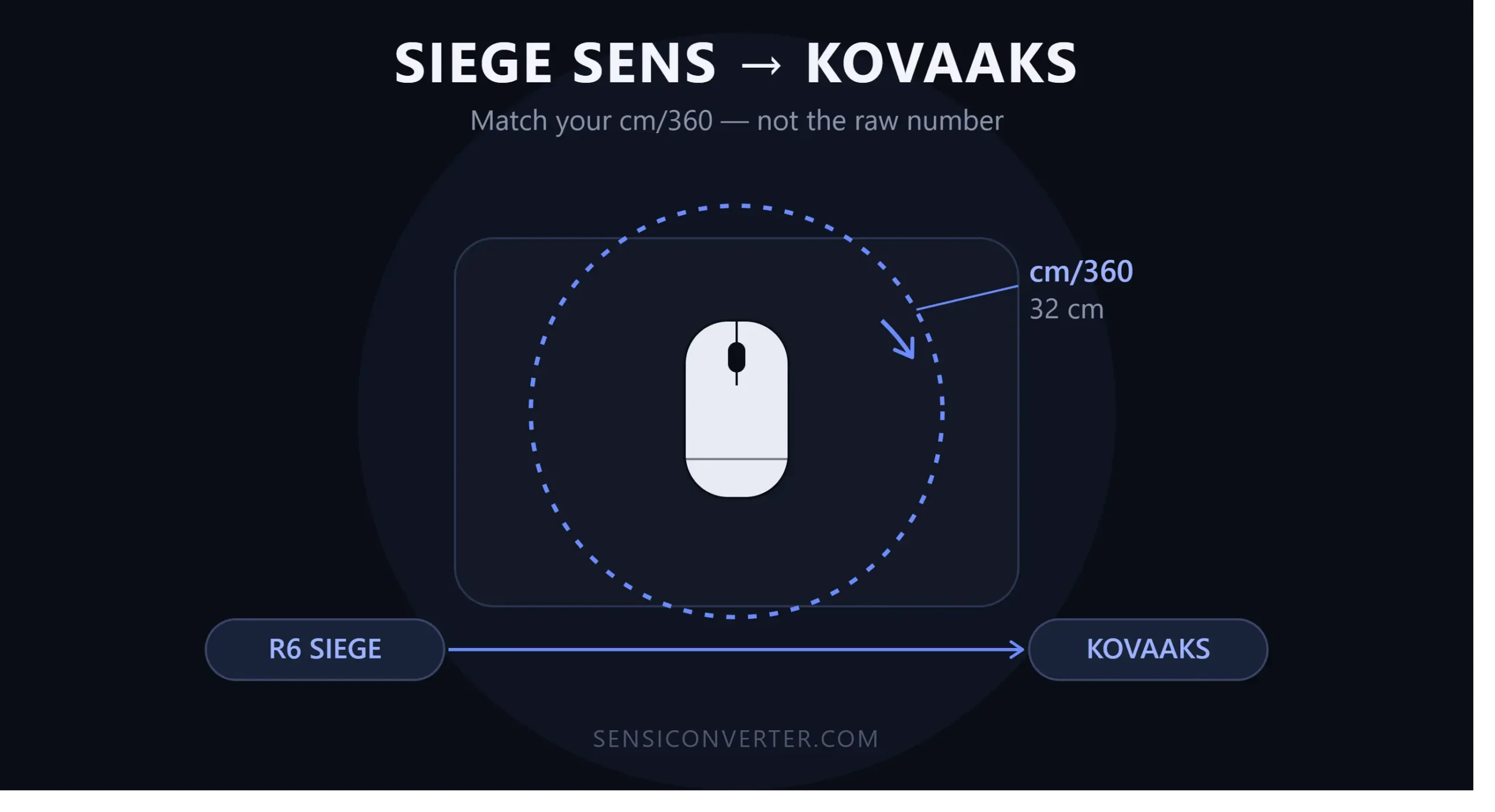
I’ve lost count of how many times I’ve torched a fresh Kovaaks routine because my crosshair felt “off.” Not bad aim, just… off. Like my hand knew where the target was but my mouse disagreed. Nine times out of ten it came down to one thing: I’d typed my Rainbow Six Siege sensitivity straight into Kovaaks and expected it to feel the same. It never does. Different engines, different math, different result.
If you’re trying to bring your Siege muscle memory into your aim trainer, or you just want to actually understand what “sensitivity” means instead of guessing sliders forever, this is the guide I wish someone had handed me a year ago.
Why You Can’t Just Type Your Siege Sens Into Kovaaks
Siege runs on a modified engine with its own sensitivity scale, and Kovaaks (built on Unreal Engine) has a completely different one. A sensitivity of “25” in Siege has zero relationship to a “25” in Kovaaks. The number itself is meaningless outside the game it came from — what actually matters is how far your hand physically moves your mouse to turn 360 degrees. That’s your cm/360, and it’s the one number that stays honest across every game, engine, and DPI setting you’ll ever use.
So the real move isn’t “converting a number.” It’s matching your physical mouse distance.
Siege vs. Kovaaks: Quick Comparison
| Rainbow Six Siege | Kovaaks | |
|---|---|---|
| Engine | Modified AnvilNext | Unreal Engine |
| Sensitivity scale | Proprietary Siege multiplier | Unreal-based multiplier |
| Built-in cross-game preset | No | Yes (“Reflex/Rainbow 6”) |
| What actually transfers | — | cm/360, not the raw number |
| Recommended cm/360 range | 20–80 cm | Match Siege exactly |
How to Convert Siege Sens to Kovaaks: The Fast Way
Kovaaks actually has a sensitivity dropdown that includes a Rainbow Six preset. Here’s how to use it properly:
- Open Kovaaks and go to Settings → Mouse/Sensitivity.
- Pick “Reflex/Rainbow 6” (or the R6-labeled option) from the game list.
- Enter your exact Siege horizontal sensitivity and your mouse DPI. These two numbers together define your real-world sensitivity — DPI alone tells you nothing.
- Let it calculate. Done.
The catch: this only works if you know your DPI accurately. A lot of people assume their mouse is running the DPI printed on the box, and it’s often not even close once software scaling or a stale profile gets involved. Before you trust the preset, verify your mouse is reporting the DPI you think it is so you’re not building your Kovaaks sens on a guess.
How to Convert Siege Sens to Kovaaks: The Manual Way
If you want full control, or you’re chasing a specific cm/360 number pros talk about, do it this way instead.
Step-by-Step
| Step | What to Do | Why It Matters |
|---|---|---|
| 1 | Find your current cm/360 in Siege by running your Siege sensitivity and DPI through the cm/360 calculator | This is the one number that’s identical across every game |
| 2 | Set Kovaaks to the same cm/360, using the same DPI | Changing DPI mid-conversion breaks the match |
| 3 | Cross-check with eDPI by comparing your Siege and Kovaaks eDPI | Good sanity check against published pro settings |
| 4 | Test in a flicking scenario (Voxtaco, Pasu, etc.) | Confirms the feel actually transferred |
Reading Your Test Results
- Overshooting your flicks? Your cm/360 came in too low — lower it slightly.
- Undershooting? Too high — raise it slightly.
- Feels natural after 15–20 minutes? You nailed it. Stop adjusting.
If you also play Valorant and want your whole rotation consistent, our dedicated Siege-to-Valorant converter handles that same-day cross-game math for you.
Recommended cm/360 by DPI (Siege Players)
Use this table as a reference point before you even start converting — it’ll tell you if your current Siege sens is in a sane range to begin with.
| Mouse DPI | Recommended Siege Sensitivity | Approx. cm/360 |
|---|---|---|
| 400 | 5–20 | 20–45 cm |
| 800 | 2–10 | 20–45 cm |
| 1200 | 2–7 | 25–45 cm |
| 1600 | 1–5 | 25–45 cm |
| 3200 | 1–2 | 25–45 cm |
Most competitive players land between 26–45 cm/360. Too low and you can’t turn fast enough under pressure; too high and you lose precision at range.
How to Change Your Mouse Sensitivity (The Right Way, Not the Guessing Way)
This sounds basic, but most people are doing it wrong. There are three separate things people lump together as “sensitivity,” and confusing them is why so many players chase their tail for months:
- DPI (mouse hardware setting) — how many pixels/counts your mouse reports per inch of physical movement. Set through your mouse software.
- In-game sensitivity — a multiplier the game applies on top of your DPI.
- eDPI — DPI × in-game sens. The number that actually represents your true “speed.”
1. Changing DPI
Use your mouse manufacturer’s software (Logitech G Hub, Razer Synapse, SteelSeries GG, etc.) and set it once. Don’t touch it again unless you’re deliberately re-basing your whole setup — constantly flipping DPI is the single biggest reason people can never settle on a sens that feels right. Most competitive players sit at a clean 400 or 800 DPI for better sensor tracking and easier math.
2. Changing In-Game Sensitivity
Go into your game’s settings menu (usually under Mouse/Controls) and adjust the sensitivity slider or numeric field directly. If you’re switching from another game and want to preserve your exact feel instead of eyeballing it, convert your exact sensitivity across 100+ games instead of starting from scratch every time you pick up a new title.
3. Don’t Forget FOV
Sensitivity and field of view are joined at the hip. Bump your FOV without adjusting sens and your effective turning speed changes even though your slider didn’t move. If you’re jumping between games with different FOV defaults, convert your field of view correctly first so you’re not accidentally sabotaging the sens work you just did.
Quick Gut-Check Routine
Whenever I change anything sensitivity-related, I run this same three-step check every time:
| Order | Tool | Purpose |
|---|---|---|
| 1 | DPI Analyzer | Confirm the mouse is actually reporting what I think it is |
| 2 | Mouse Sensitivity Converter | Calculate my target sens accurately |
| 3 | cm/360 Calculator | Cross-reference before touching a single training scenario |
Takes about two minutes and saves me from that “why does my aim feel broken today” spiral that used to eat entire sessions.
FAQ
Does Kovaaks have a Rainbow Six Siege preset? Yes — under Settings → Mouse/Sensitivity, select “Reflex/Rainbow 6” and enter your Siege sens and DPI.
What’s the most accurate way to convert Siege sens to Kovaaks? Matching cm/360 rather than copying the raw sensitivity number, since Siege and Kovaaks use completely different sensitivity scales.
Do I need to change my DPI to convert sensitivity? No. Keep your DPI identical between both games — only the in-game sensitivity value needs to change.
What cm/360 do most competitive players use? Between 26–45 cm/360 for tactical shooters like Siege.
The Bottom Line
Your sensitivity number is meaningless on its own — it’s the physical distance behind it that carries your muscle memory from game to game. Match your cm/360, keep your DPI locked, and stop retyping raw numbers between games and expecting them to feel the same. Do the conversion properly once, and you’ll spend your Kovaaks time actually training instead of relearning how to aim from scratch every session.